Managing pipelines just got a lot easier.
You can now collapse, expand, and resize stages in the Opportunities Kanban view—so you can focus only on what matters.
What’s New
- Collapse and expand stages in Kanban view
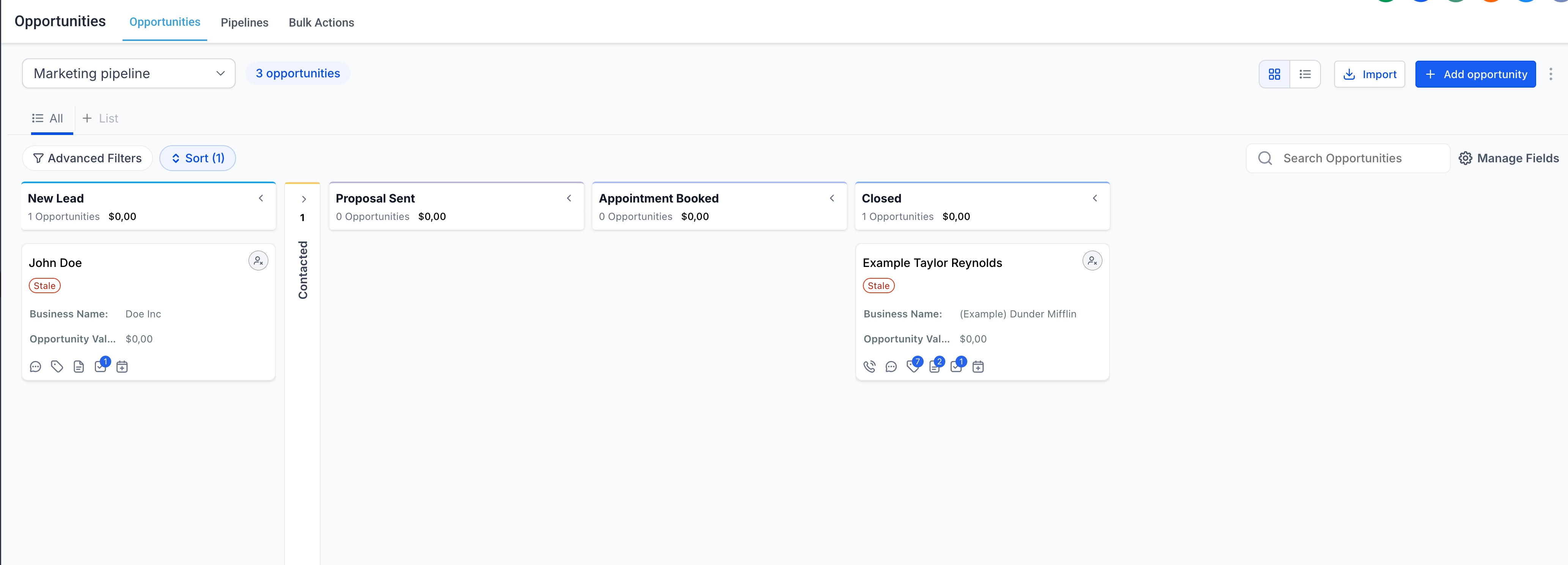
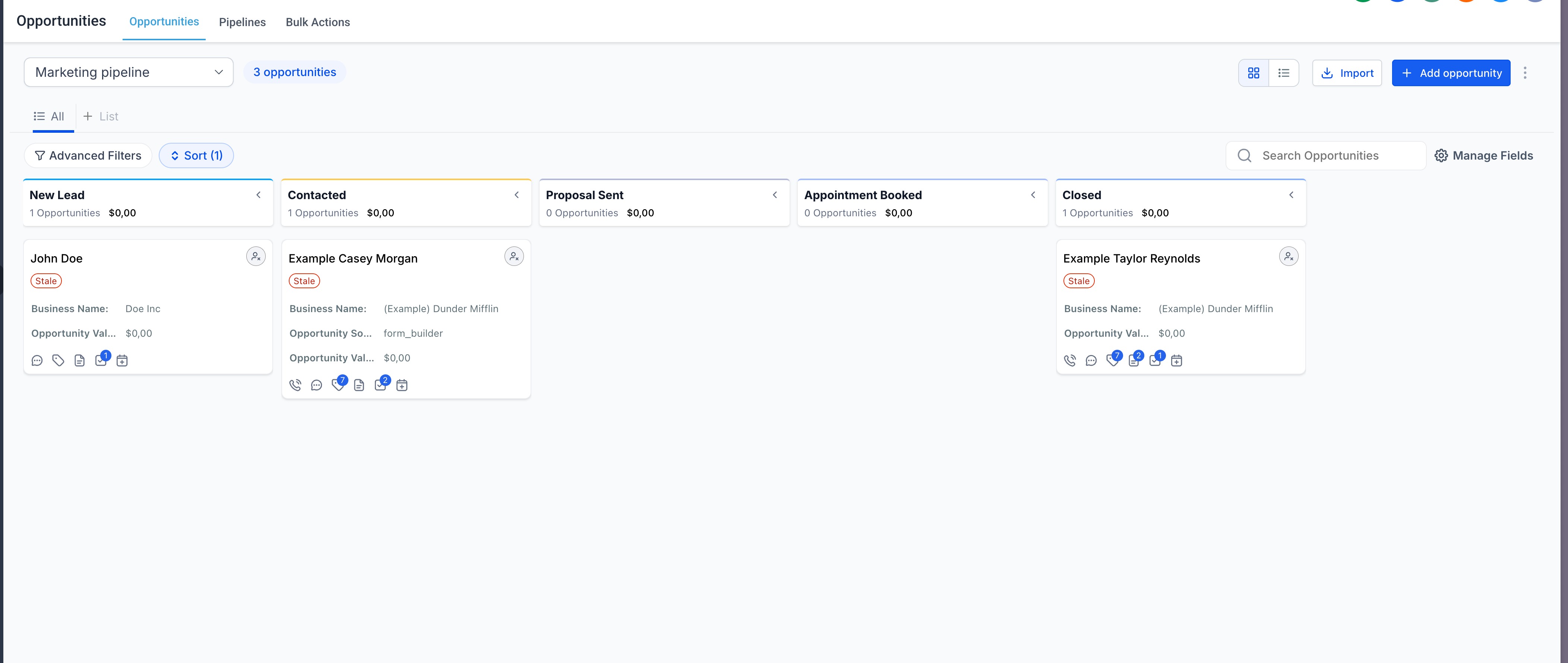
- Resize columns to prioritize important stages
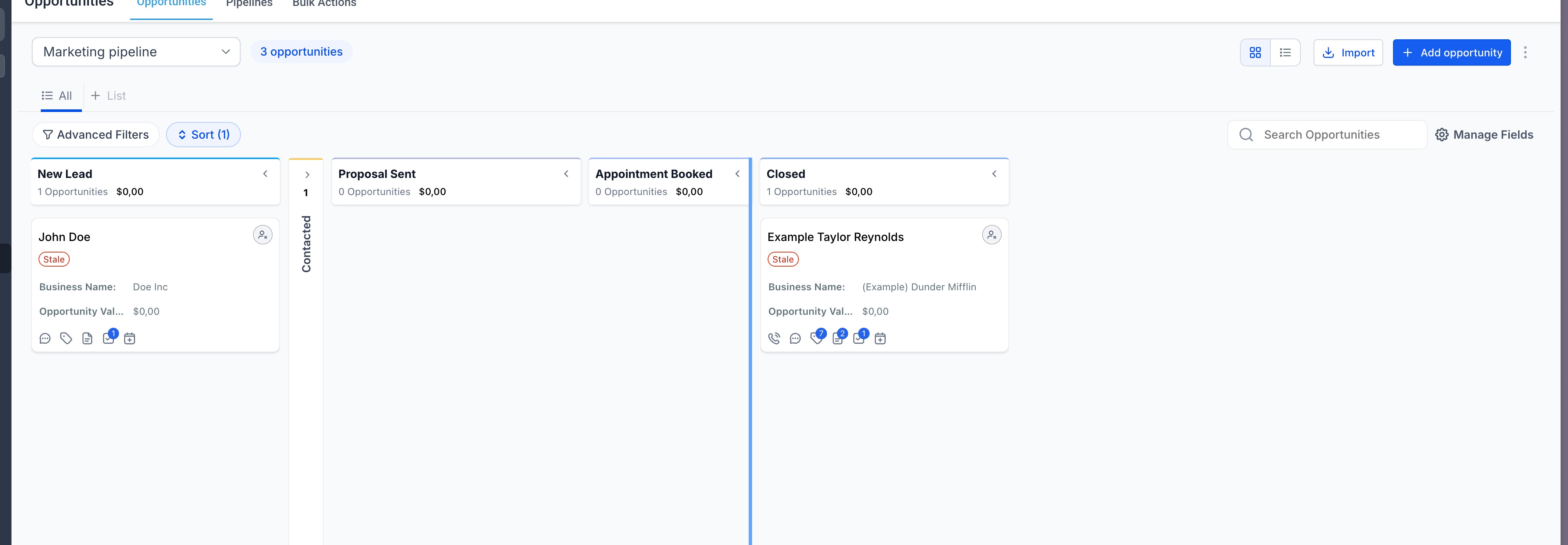
- Layout preferences are saved automatically (per user)
How It Works
- Go to Opportunities → Kanban view
- Click on a stage header (< / > icons) to collapse or expand it
- Drag column edges to resize stages
- Double-click the divider to reset a column to its default size
Why It Matters
- Clean up clutter in large pipelines
- Focus on high-priority deals
- Customize your workspace without affecting your team
- Better visibility, less scrolling
Notes
- Layout preferences are stored locally (browser-based). Bringing it to smart views soon so you can save changes permanently
- Changes are user-specific and won’t impact other users
Was this article helpful?
That’s Great!
Thank you for your feedback
Sorry! We couldn't be helpful
Thank you for your feedback
Feedback sent
We appreciate your effort and will try to fix the article